Sidekick
The content and discovery companion to add value to your viewing.
What is Sidekick?
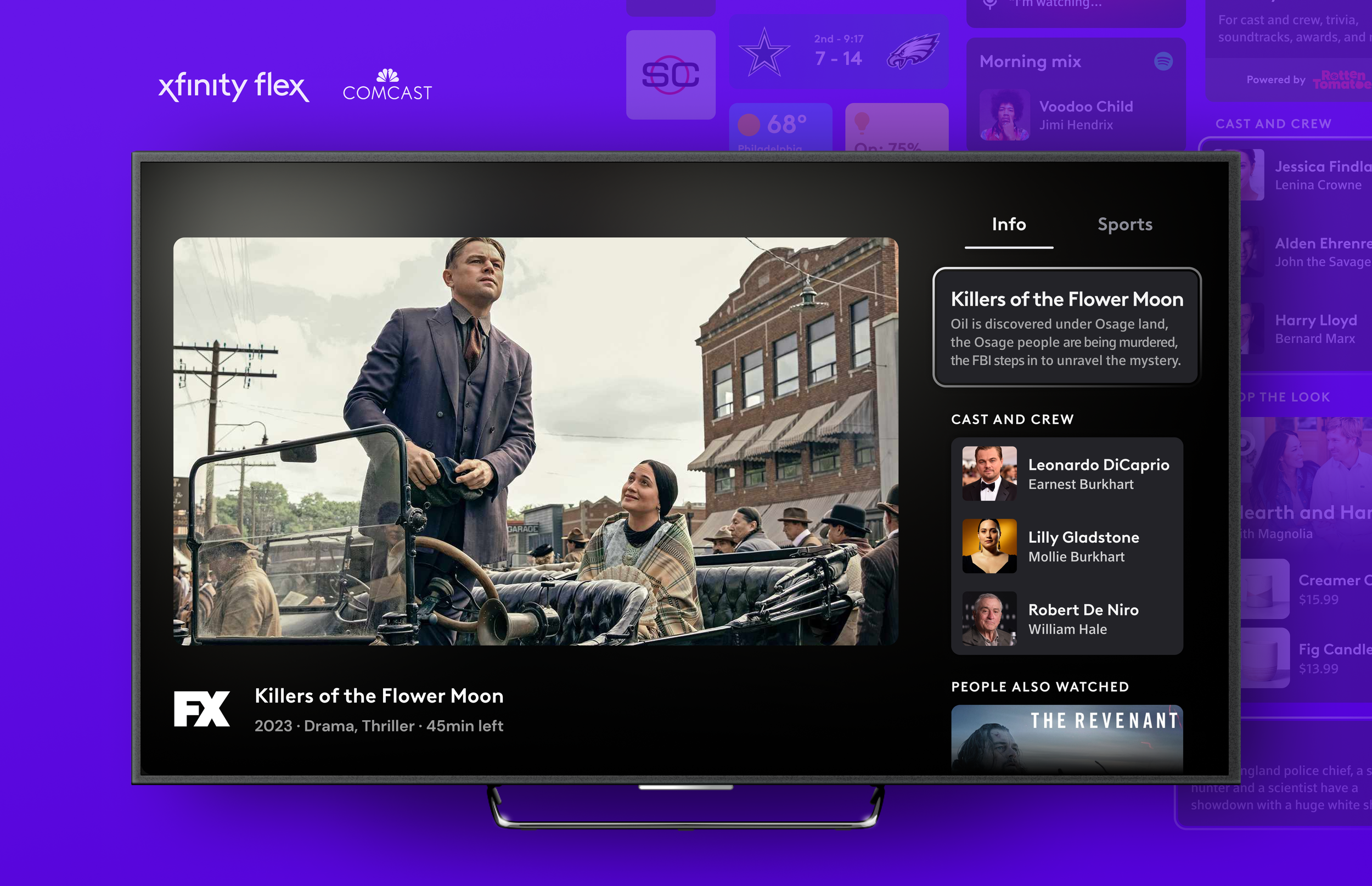
Sidekick is a new feature in the playback experience on Xfinity Flex and XClass TVs. At any point while watching a program, the user can activate an experience that combines viewing with a panel of widgets to aid and improve the viewing experience. Sidekick functions best as a content and discovery companion.
It is easy to use and navigates a user to information or content quickly. By prioritizing widgets that add value and leverage personalization and low-effort customization, we have the opportunity to enhance the TV experience and increase engagement.
Xfinity Flex is an OTT operating system owned by Comcast. The service is structured as a virtual multichannel video programming distributor.
Xfinity Flex lets you easily access all your favorite apps and networks, like Netflix, Disney+, Hulu, and more. You also have access to free apps like Xumo Play, Tubi and Pluto, which include over 10,000 free shows and movies, including 200 channels.

What is Xfinity Flex?
My Role
I was a part of a small team that worked on the design and launch of Sidekick on Xfinity Flex & XClass TV. I worked on initial component creation for the first set of widgets and how they can be systematized. Working closely with product and engineers, we shipped an MVP version of the feature as well as a post-MVP. I also worked with the research team to shape the next wave of widgets to be included in the Sidekick experience.

Goals
Provide contextual value to what the user is currently watching
Improve discoverability of related content
Create an ecosystem of widgets
Easily accessible
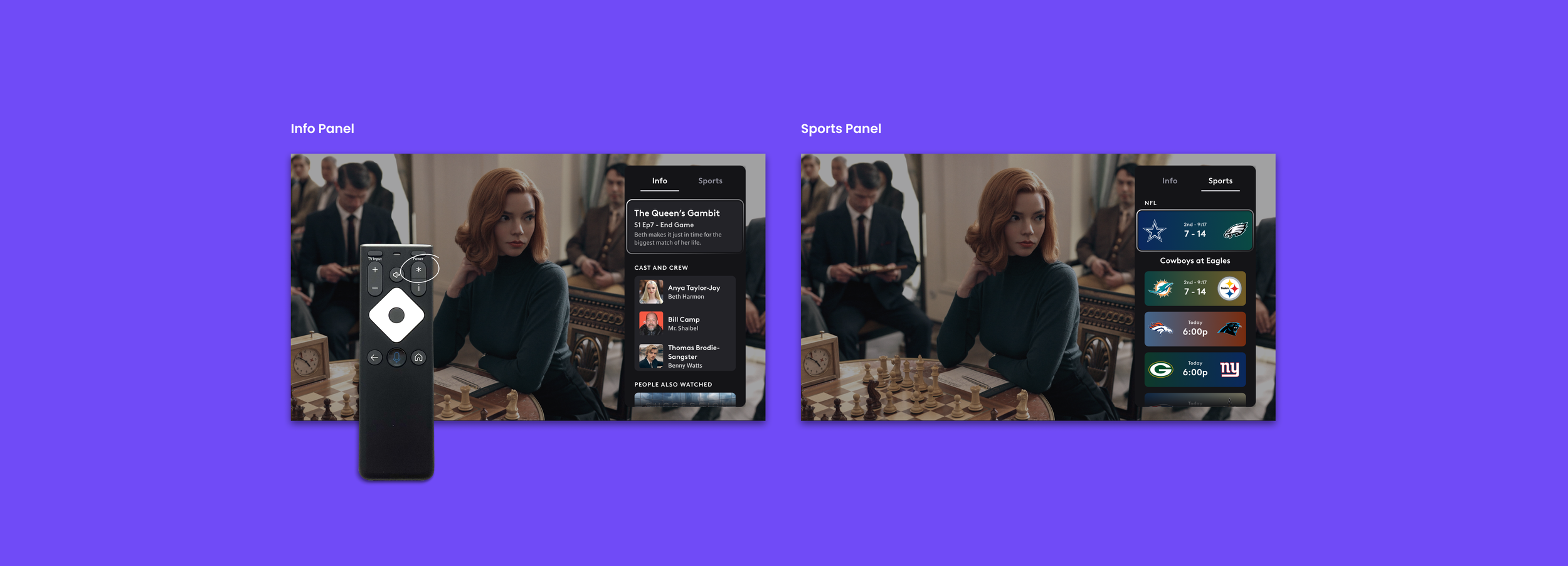
Sidekick is built with panels containing widgets. There are two panels, Info & Sports. Both are accessible via tabs at the top of the feature. If the user presses left or right the panels switch. If the user presses up or down the next widget comes into focus at the top of the panel.

Panels
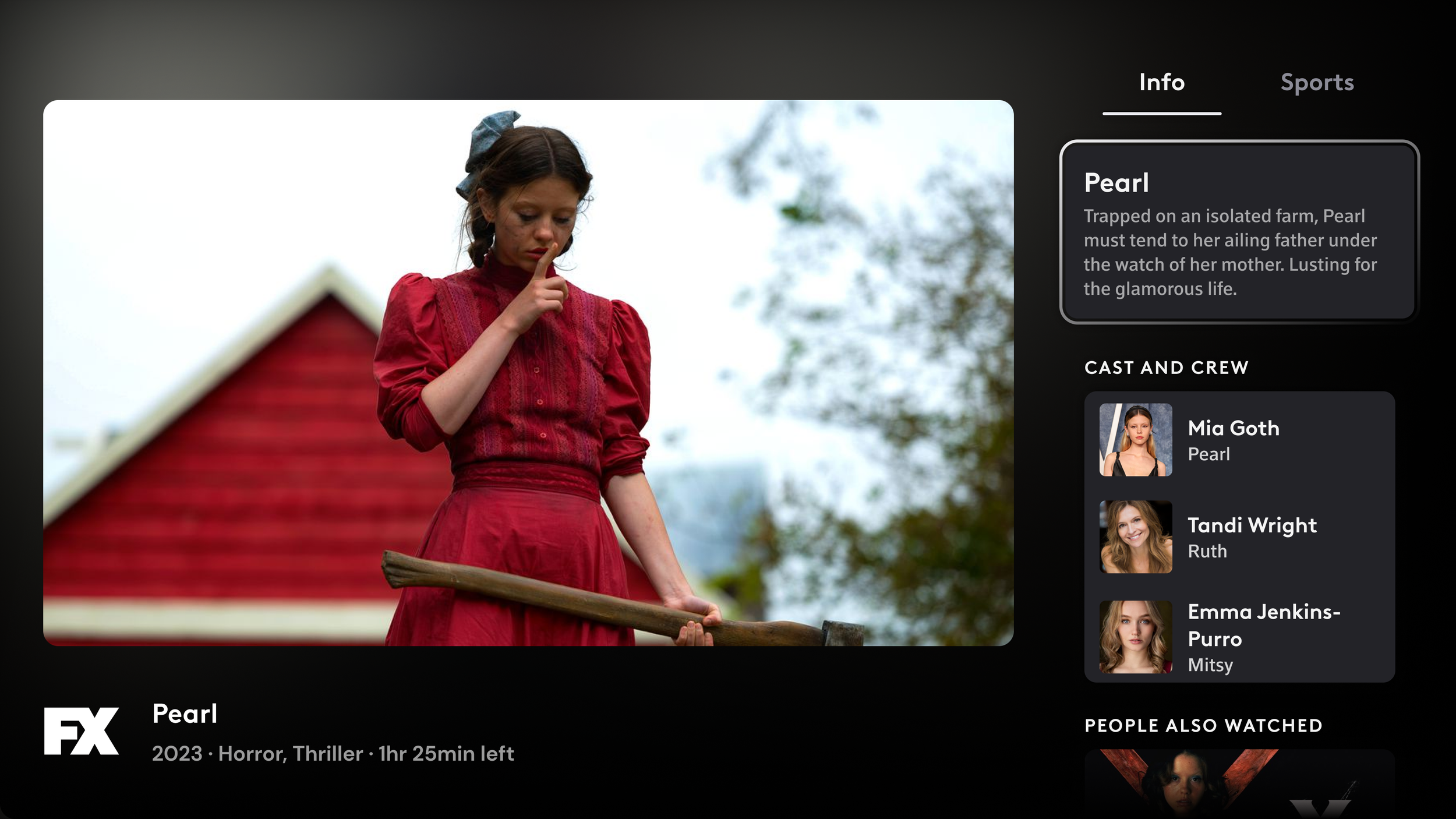
Info Tab
Widgets live inside the panel and can be made up of any combination or number of widgets. The panel opens when the user presses the info or more button on their remote. Playback is aligned to the left margin and the video scales down.
The info tab contains contextual widgets to what the user is currently watching.

Sports Tab
This contains widgets for all sports events airing that day and the next. If the user is watching a live event when Sidekick is activated, then the user will land in the sports tab of Sidekick with that event matchup widget in focus.
MVP vs. Post MVP
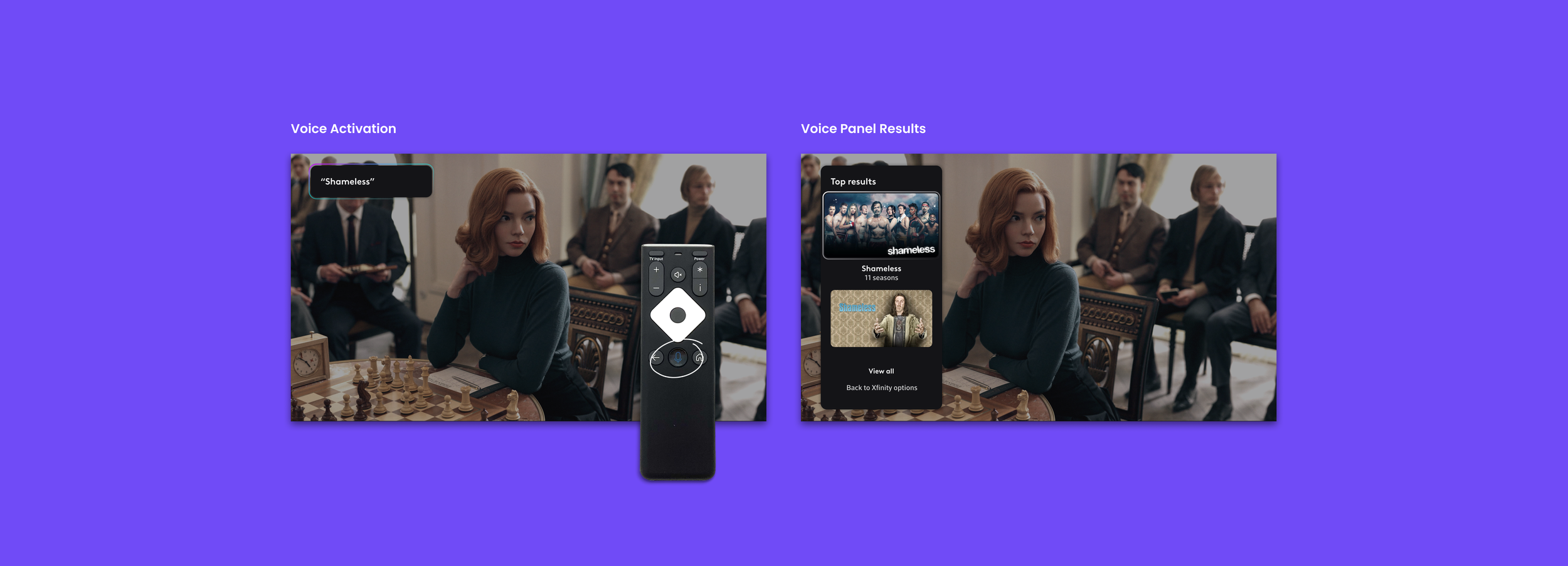
Due to technical constraints, the squeezed-back video experience could not be achieved for launch. Thankfully, we had designed the panels based on an existing similar component, the Voice Panel. This allowed us to leverage those existing patterns and have the Sidekick experience exist in a floating panel over the video once activated.
Widgets
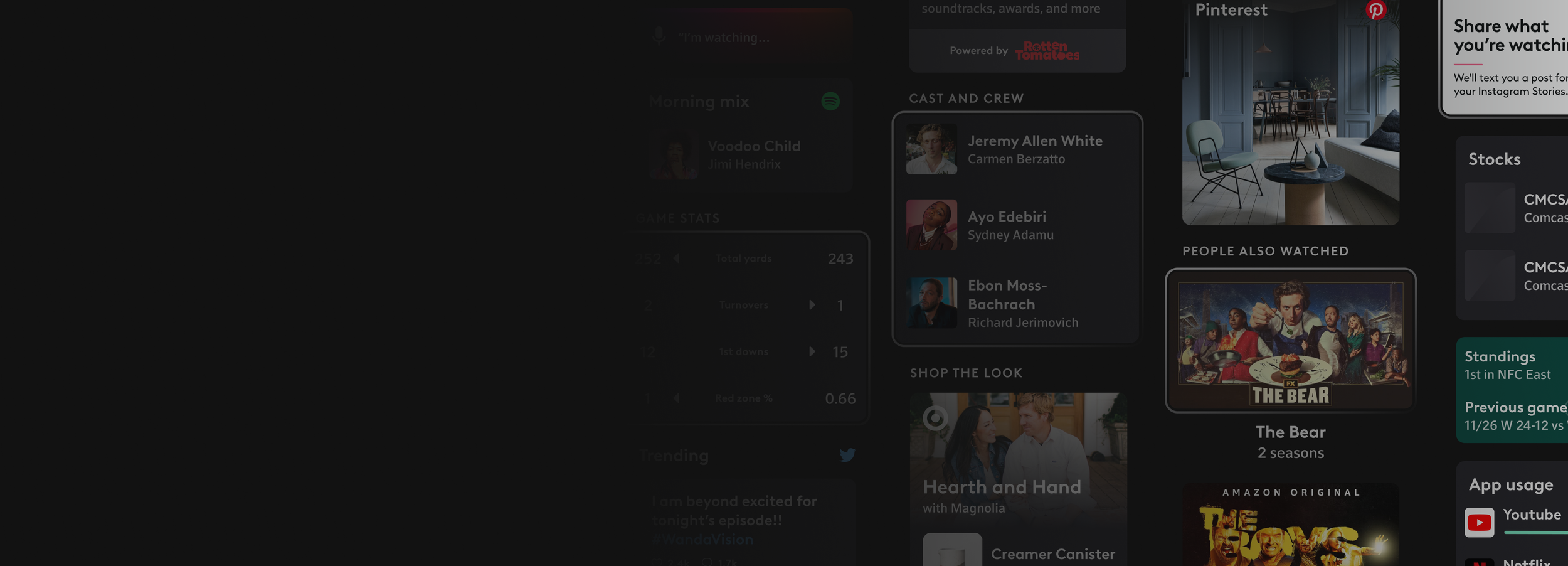
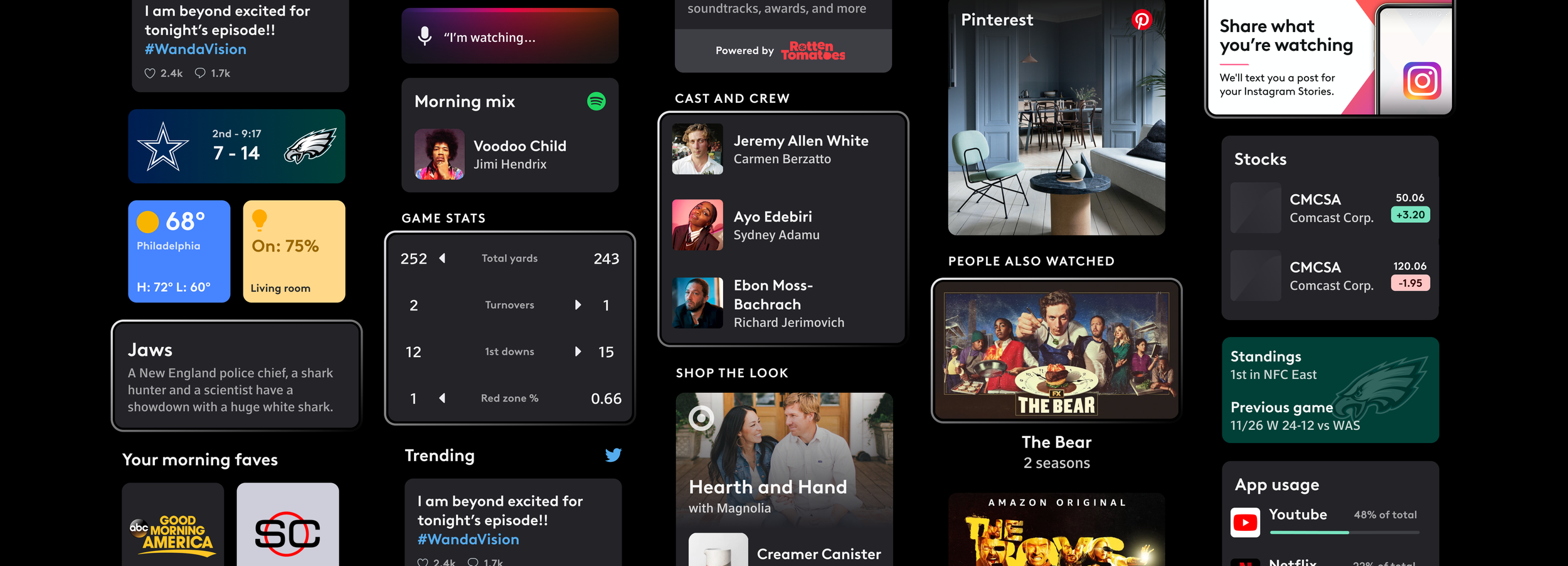
A widget is a container that provides additional contextual information to a user. All widgets can be put in focus and then selected to gain additional content in the Widget Views.
Initial MVP Widgets
Contextual
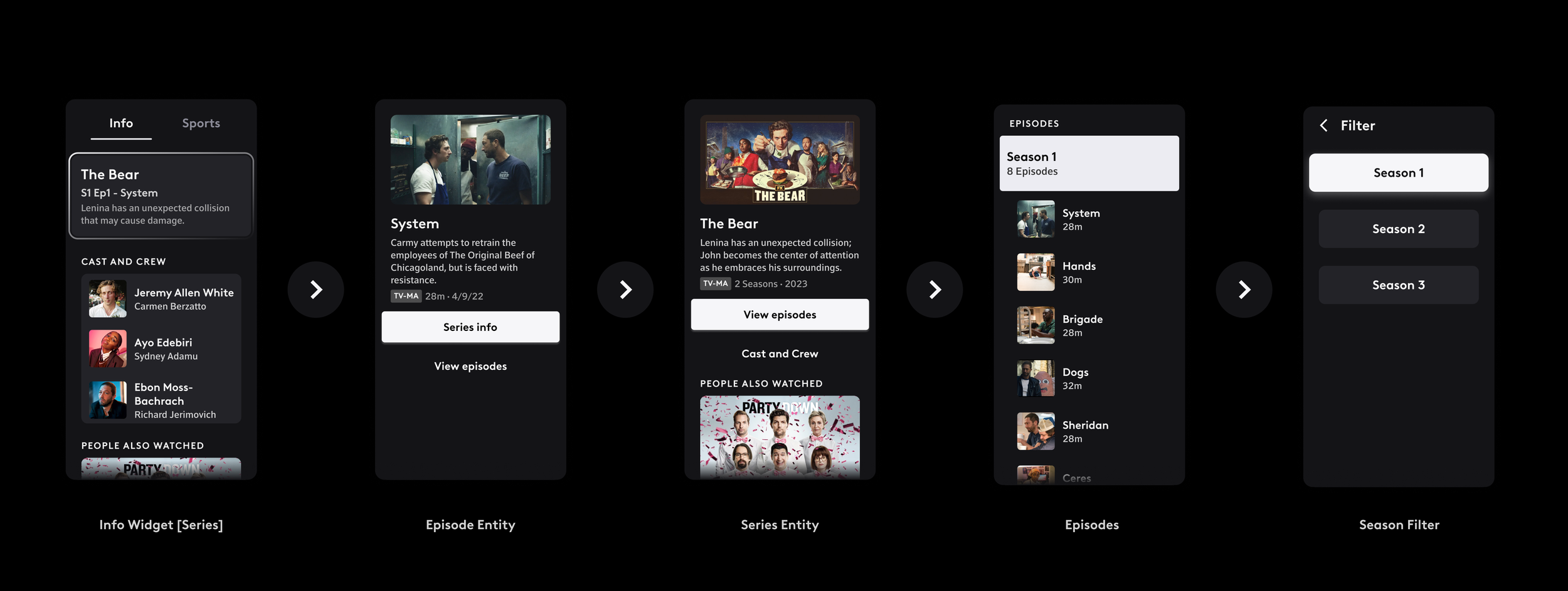
Info, Cast & Crew, People Also Watched, and Now Playing.

Diving Into Widgets
Each widget maintains a function, and most of them lead to additional screens that contain more information and actions.



Sports
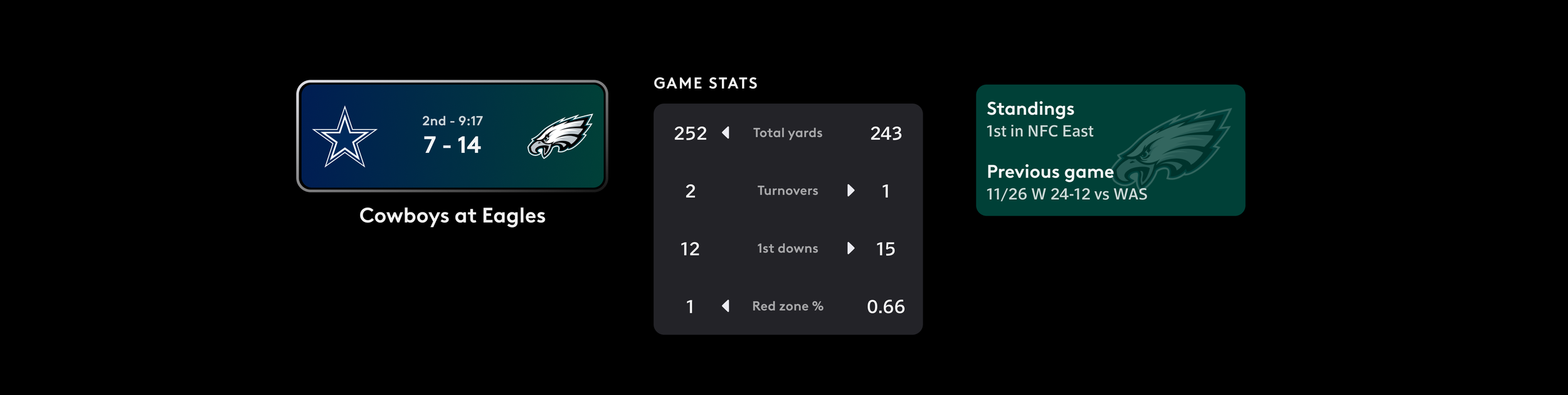
Team Matchup, Game Stats, and Team Info.
Diving Into Widgets
Each widget maintains a function, and most of them lead to additional screens that contain more information and actions.

The sports widgets and schedule have a set logic to determine the metadata displayed inside and outside of the widgets, as well as their placement. The sports widgets had to be created to handle the different types of stats required for the specific sports.
New Widget Explorations
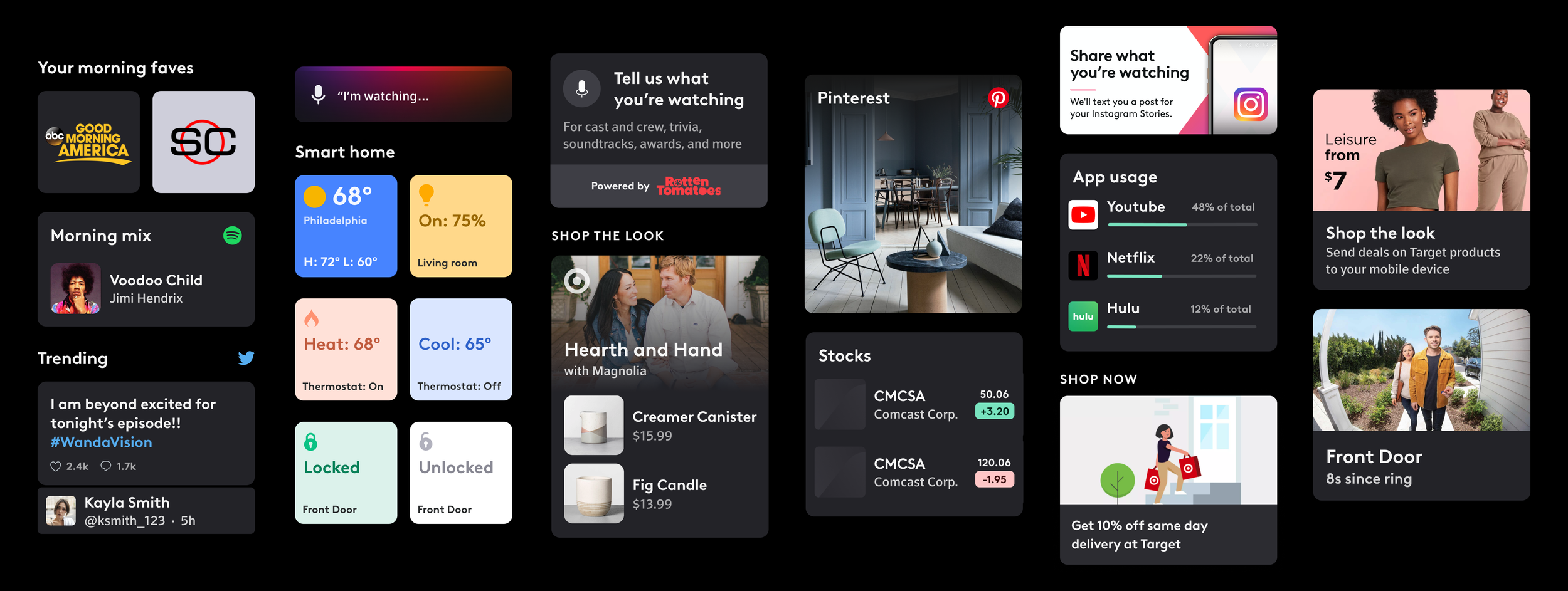
While working through the MVP handoff, our team began to experiment with more future-thinking widgets. Product gave us a list of ideas, as well as let the team explore.
New Widget Research Sessions
The Design Team & Research Team partnered up to test if any of the concept widgets were worth further exploration and implementation. I mocked up all of the widgets and their flows in prototypes. The Research Team conducted one-on-one sessions between the interviewer and a volunteer. They showcased the prototypes and asked volunteers questions about each widget.
Some questions we were looking for answers to were: Did they inherently know what the widget performed? What was the likelihood of them using the widgets on a scale from 1-10? The findings helped us move forward in a clearer direction.
Social Media
Twitter, Instagram, and Pinterest
Smart Home
Thermostat, Smart Locks, Smart Cameras, ect.
10-to-2
Share, Shop The Look, & Shop Store

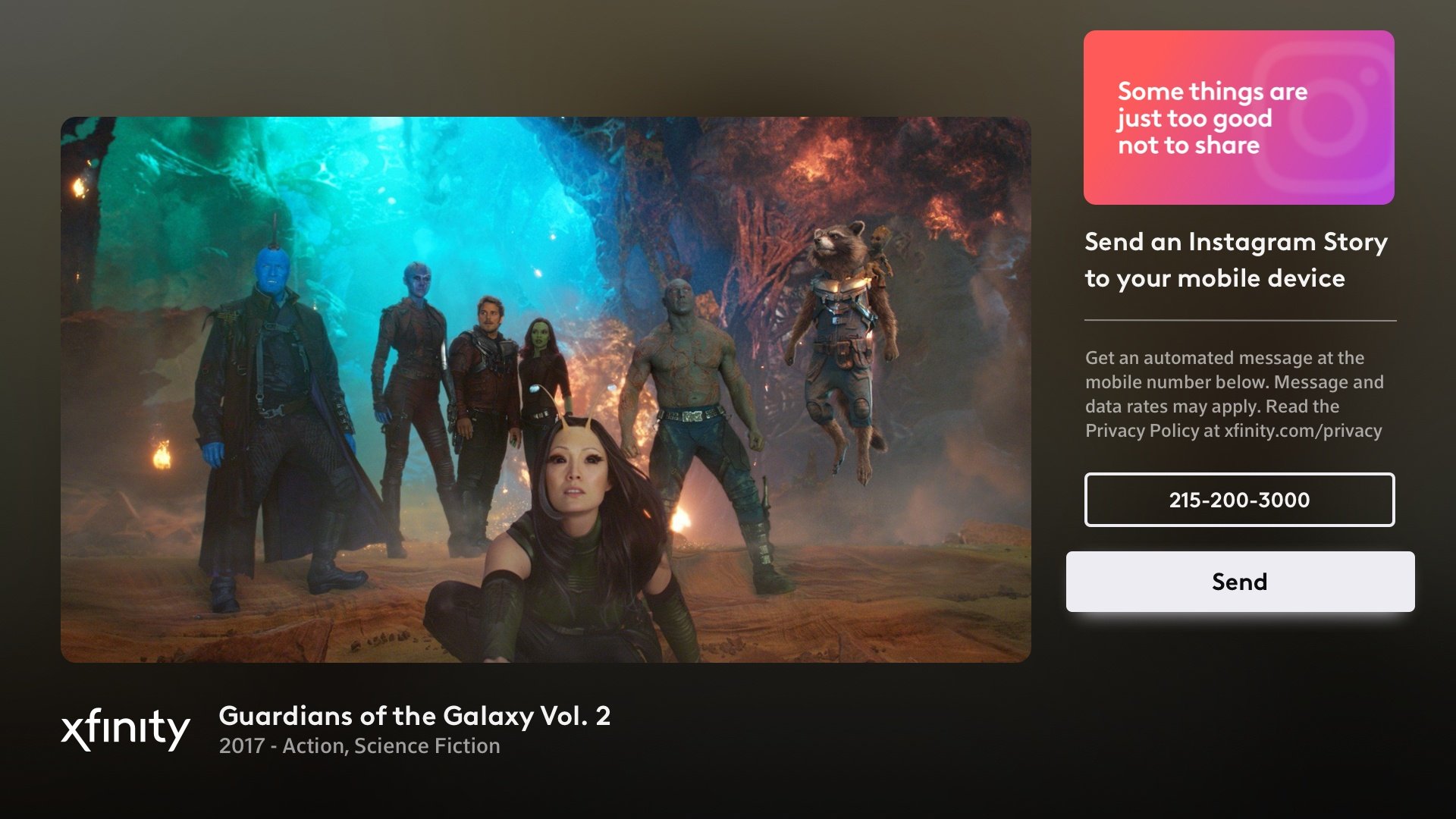
10-to-2 Widgets [Share]
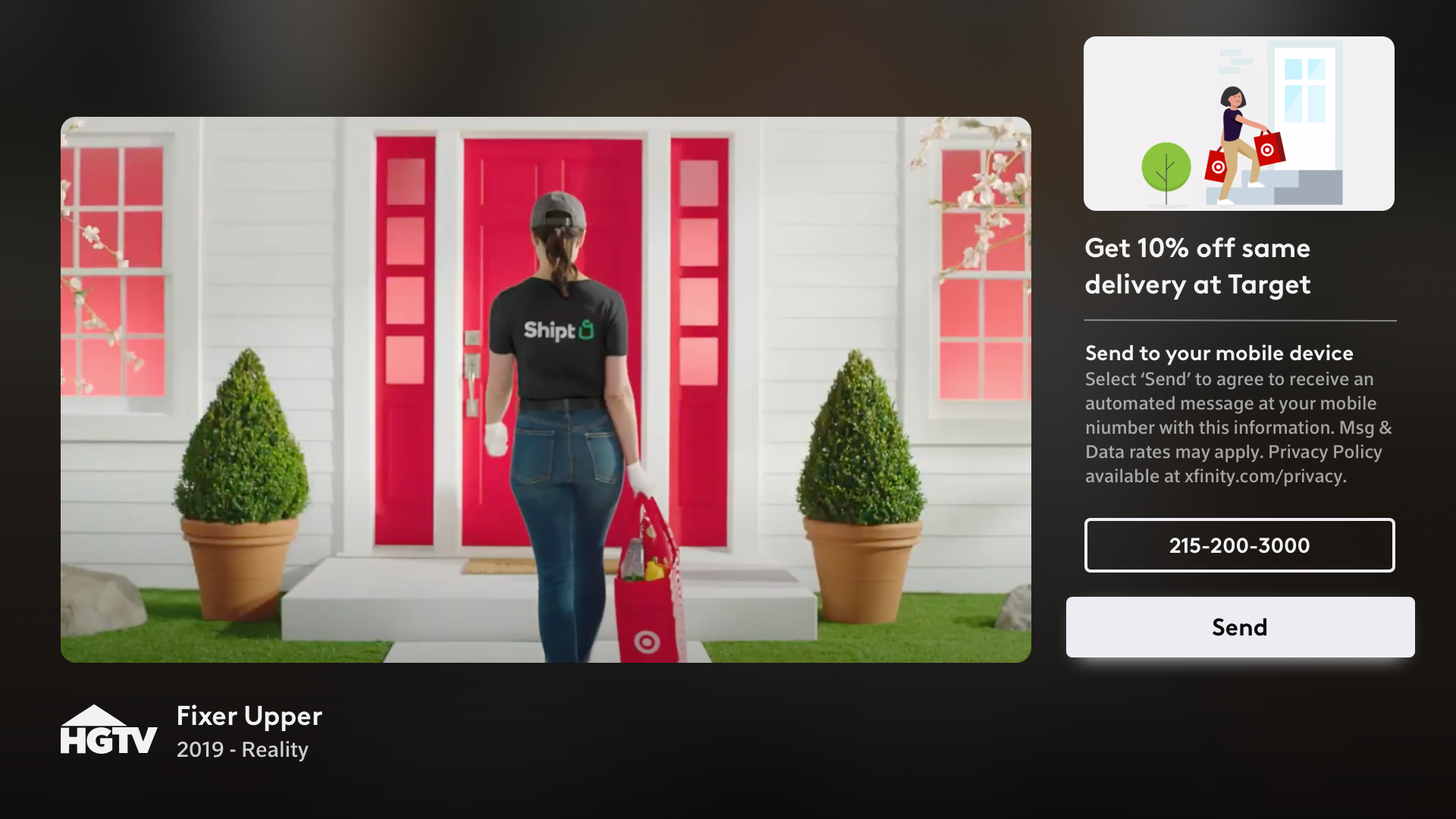
This widget has the ability to send a relevant link to what is playing from the TV to the user’s phone. All of the widgets have the potential for partnering with real businesses.
Use Cases: Share, Shop The Look, & Shop Store widgets.
To the left is the Share Widget. This creates a custom image to display what you’re watching on your Instagram Story.
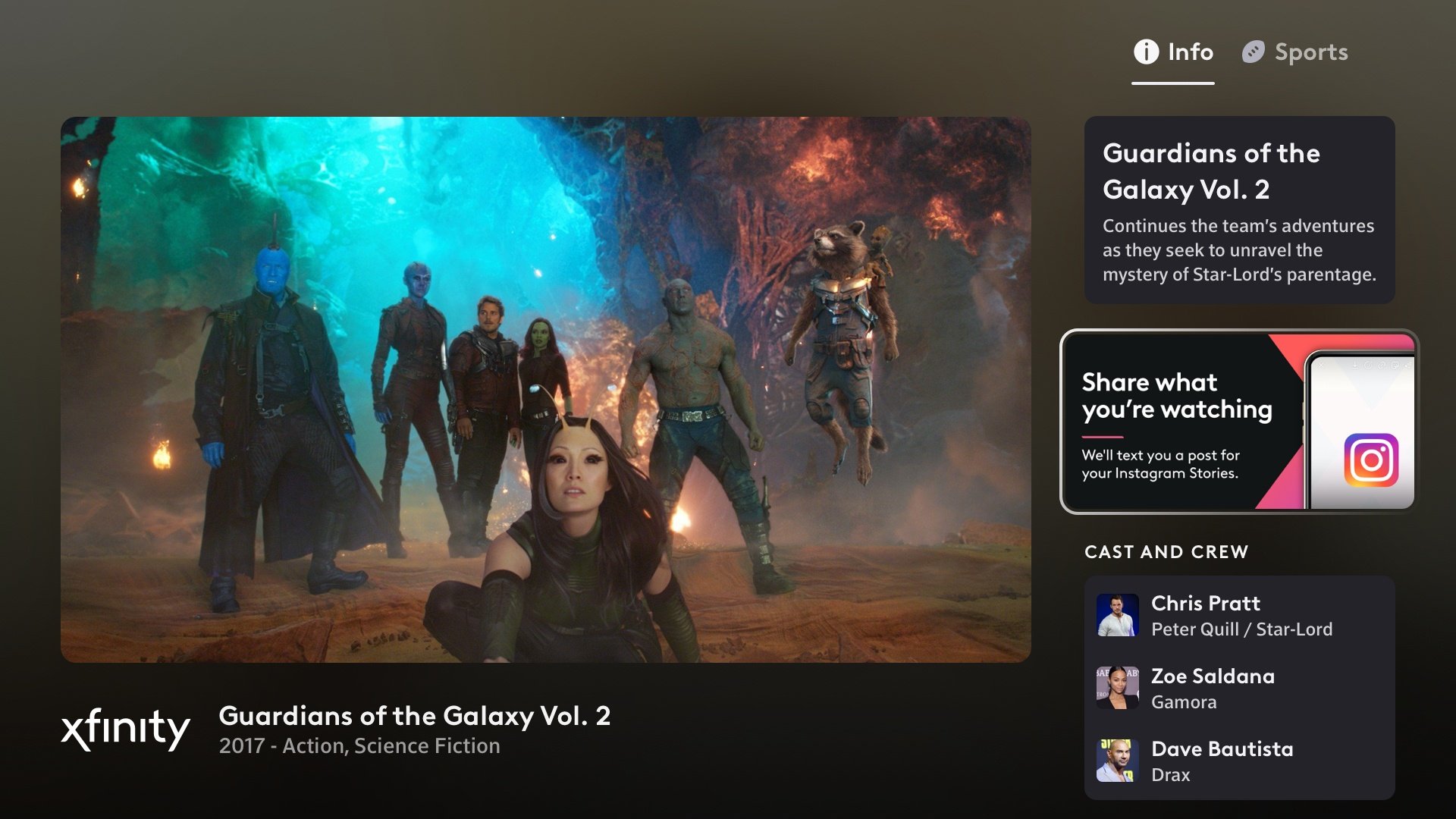
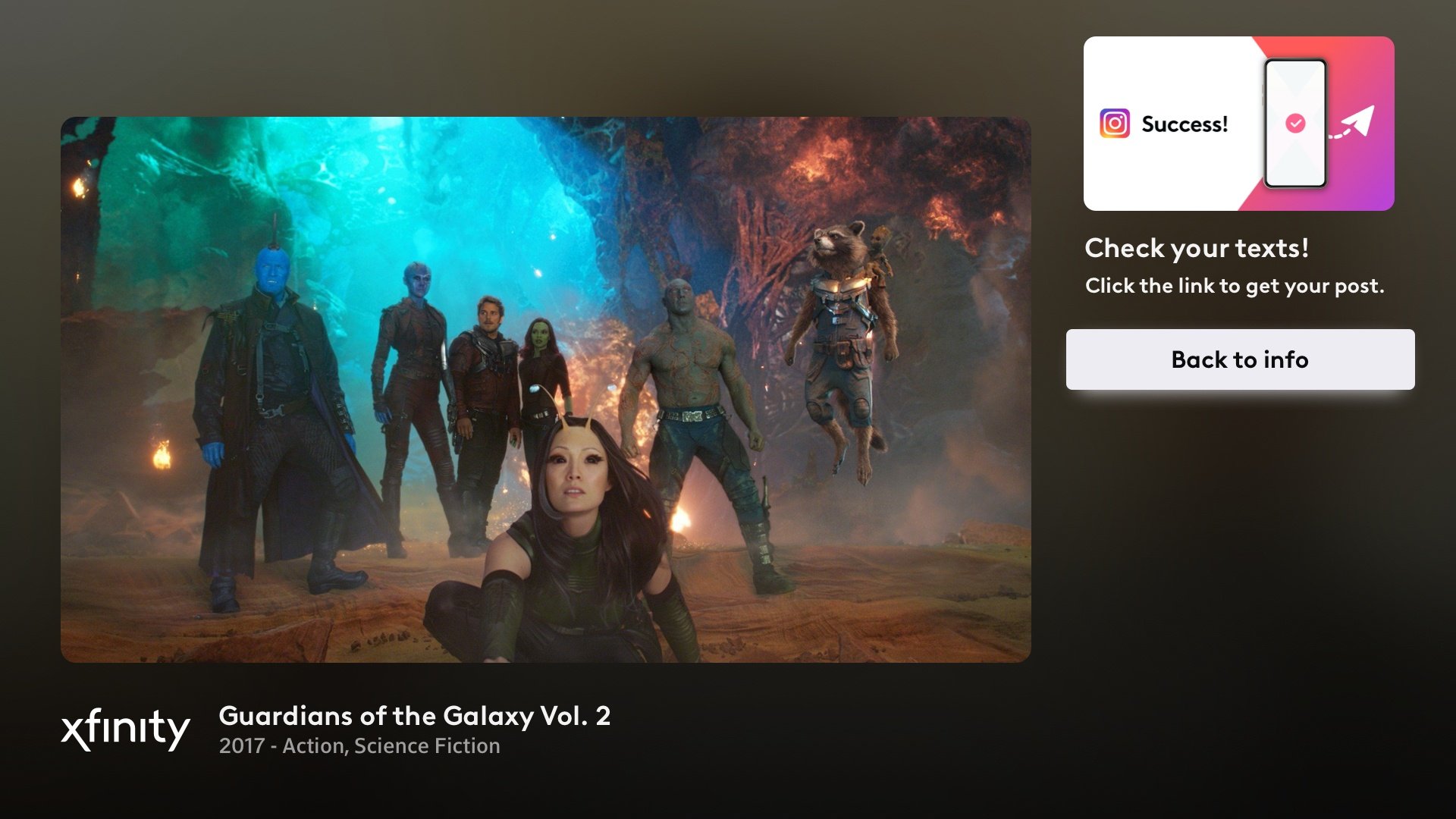
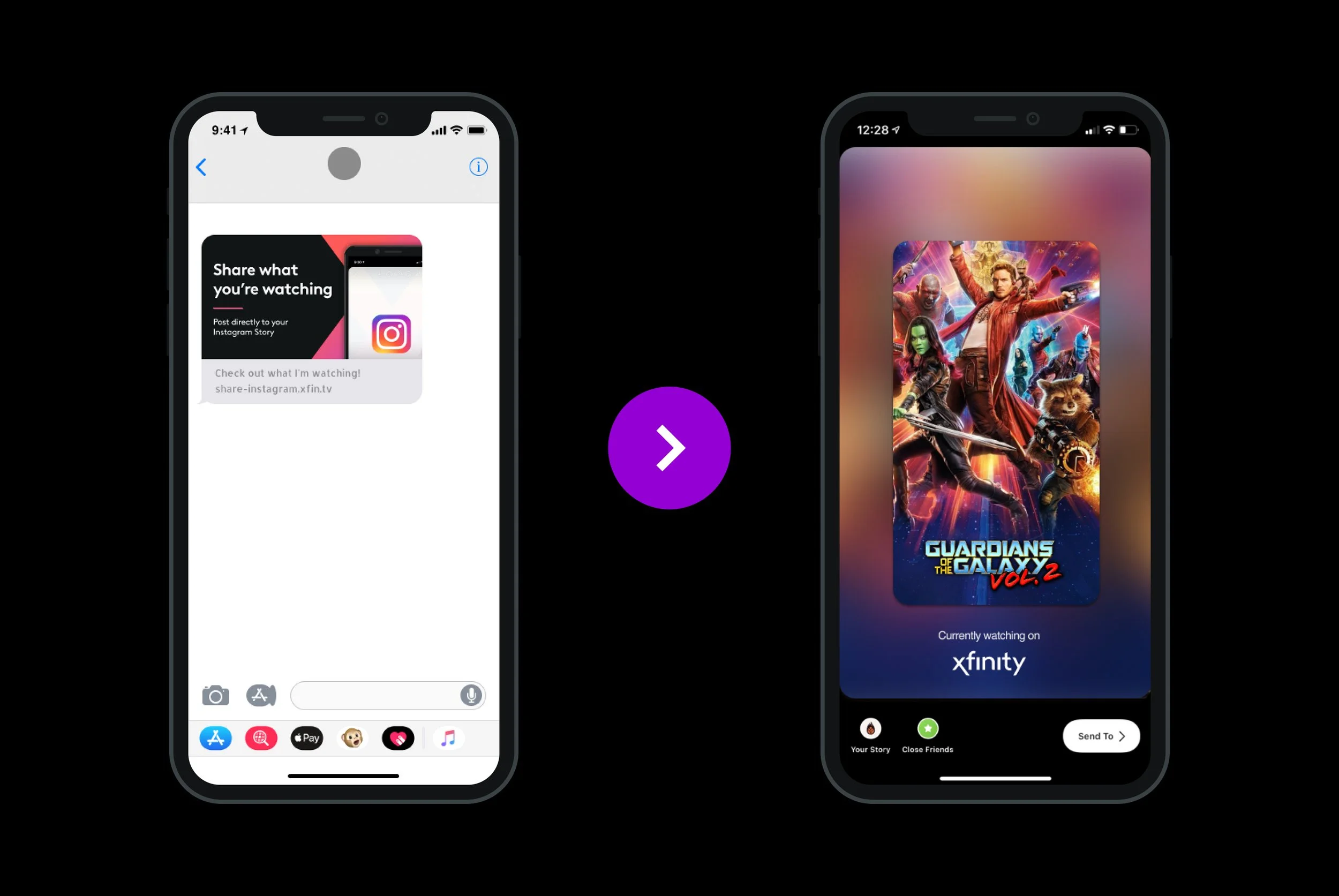
Once the link is texted to the user’s phone, they can press it to open up Instagram with the custom story image loaded and ready to post.
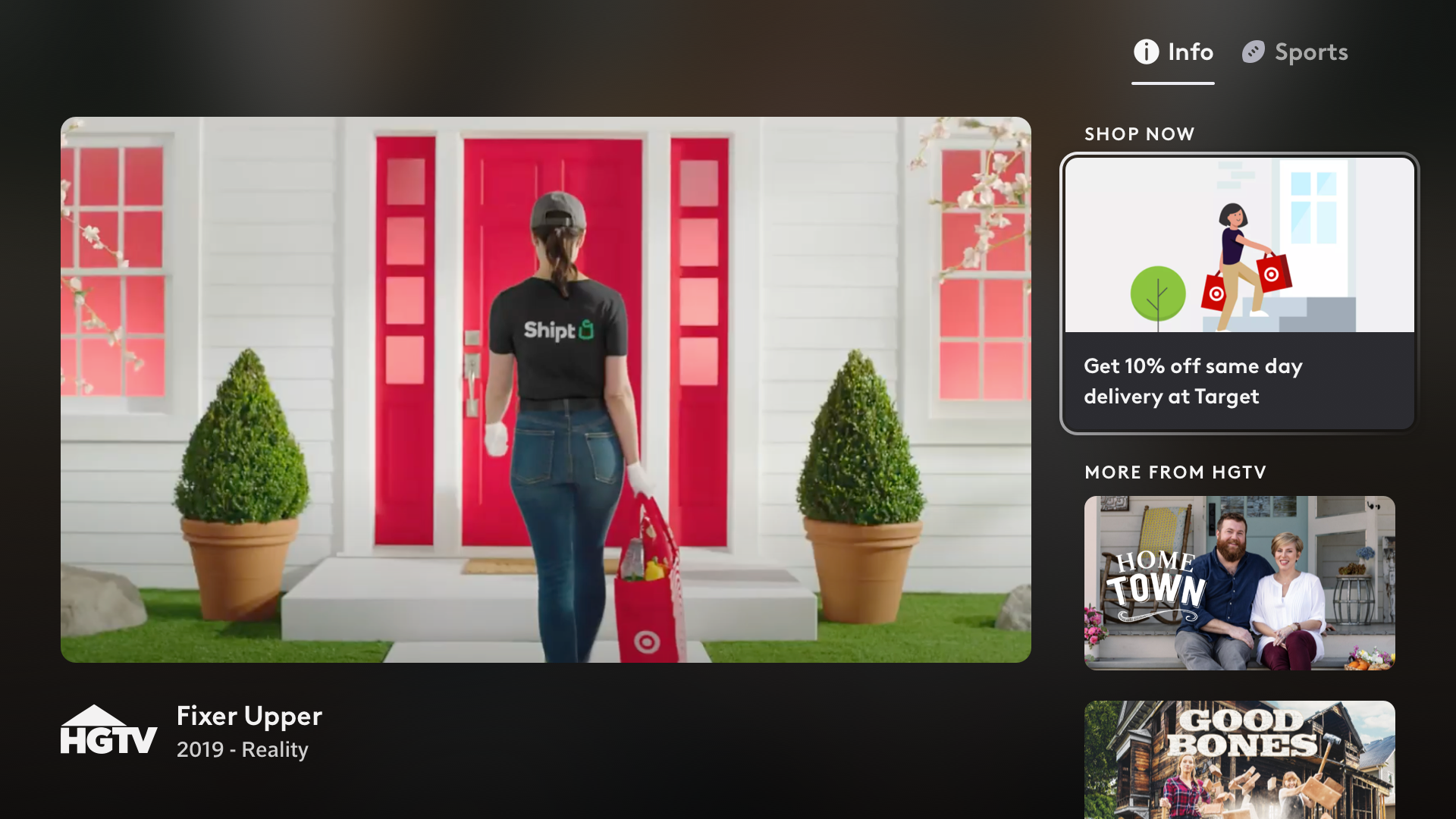
This widget has the ability to send a relevant link to what is playing from the TV to the user’s phone device. These widgets have the potential for partnering with real businesses.
Use Cases: Share, Shop The Look, & Shop Store widgets.

Shop Now